[IsaacLab Part 2] Unitree Go2 환경 구성하기
Isaac Lab의 InteractiveSceneCfg와 SimulationContext로 Unitree Go2 scene을 구성하는 과정을 정리한다.
[IsaacLab Part 2] Unitree Go2 환경 구성하기
사담
드디어 내 로봇개 go2가 도착했습니다!!
이번 프로젝트의 최종 목표는 로봇개로 건물 전체를 매핑하는 일인데.. 세부 목표를 따지면 아래와 같을 것 같습니다.
isaac lab을 통해 isaac sim상에서 로봇개의 걷는 policy 학습하기
sim to real을 통해 ros로 로봇개의 움직임 제어..
Interactive scene구성
1
2
3
4
5
6
7
8
9
10
11
12
13
14
15
16
17
18
19
20
21
22
23
24
25
26
27
28
29
30
31
32
33
34
35
36
37
from isaaclab.scene import InteractiveSceneCfg
from isaaclab.terrains import TerrainImporterCfg
from isaaclab.sensors.ray_caster import RayCasterCfg
from isaaclab.sensors.ray_caster.patterns import GridPatternCfg
from isaaclab.sensors.ray_caster import patterns
from isaaclab.utils import configclass
from isaaclab_assets.robots.unitree import UNITREE_GO2_CFG  # isort:skip
from isaaclab.assets import ArticulationCfg, AssetBaseCfg
import isaaclab.sim as sim_utils

@configclass
class Myscene(InteractiveSceneCfg):
    # 지형 정의
    terrain = TerrainImporterCfg(
        prim_path = "/World/ground",
        terrain_type = "plane",
    )

    # 로봇 정의
    go2: ArticulationCfg = UNITREE_GO2_CFG.replace(prim_path="{ENV_REGEX_NS}/Go2")

    # 센서 정의
    height_scanner = RayCasterCfg(
        prim_path = "{ENV_REGEX_NS}/Go2/base",
        update_period = 0.02,
        offset=RayCasterCfg.OffsetCfg(pos=(0.0, 0.0, 20.0)),
        ray_alignment="yaw",
        pattern_cfg=patterns.GridPatternCfg(resolution=0.1, size=[1.6, 1.0]), # pattern_cfg
        debug_vis=True,
        mesh_prim_paths=["/World/ground"],
    )

    # 조명 정의
    light = AssetBaseCfg(
        prim_path = "/World/light",
        spawn = sim_utils.DistantLightCfg(intensity=1000.0),
    )
- Isaac lab은 InteractiveScene과 InteractiveCfg를 통해 환경을 구성할 수 있는데요 그중에는 Terrain(장애물), robot, sensor, light등이 있습니다.
- Terrain : 일단 prim_path와 type을 지정하여 아무것도 없는 지면으로 구성하였습니다.
- robot : asset으로부터 unitree go2로봇의 cfg파일을 가져와 로봇의 관절이나, 여러 파라미터 구성해줍니다.
- sensor : hight_scanner sensor를 장착했는데요. 로봇의 강화학습에 필요한 지형높이정보를 수집하는데 사용될 수 있습니다. 예를들어 robot의 base로부터 mesh_prim_path인 ground까지의 높이를 측정합니다.
Simulation setting
1
2
3
4
5
6
7
8
9
10
11
12
13
14
15
16
17
18
19
20
21
22
23
24
25
26
27
28
29
30
31
32
33
34
35
36
37
38
39
40
41
42
43
44
45
46
47
48
49
50
51
52
53
54
55
56
57
58
59
60
61
62
63
64
65
66
67
68
69
70
71
72
import os
import hydra
import rclpy
import torch
import time
import math
import argparse
from isaaclab.app import AppLauncher
# add argparse arguments
parser = argparse.ArgumentParser(description="Unitree go2 ros2 setup")

# append AppLauncher cli args
AppLauncher.add_app_launcher_args(parser)
# parse the arguments
args_cli = parser.parse_args()

# launch omniverse app
app_launcher = AppLauncher(args_cli)
simulation_app = app_launcher.app

"""Rest everything follows."""

import torch
import isaaclab.sim as sim_utils
from isaaclab.scene import InteractiveScene, InteractiveSceneCfg
from isaaclab.sim import SimulationContext

from go2.go2_env import Myscene


FILE_PATH = os.path.join(os.path.dirname(__file__), "config")
@hydra.main(config_path=FILE_PATH, config_name="sim", version_base=None)
def run_simulator(cfg):
    sim_cfg = sim_utils.SimulationCfg(device=args_cli.device)
    sim = SimulationContext(sim_cfg)
    sim.set_camera_view([2.5, 0.0, 4.0], [0.0, 0.0, 2.0])
    scene_cfg = Myscene(num_envs=cfg.num_envs, env_spacing=2.0)
    scene = InteractiveScene(scene_cfg)
    # play the simulator
    sim.reset()
    print("[INFO]: simulation started")
    sim_dt = sim.get_physics_dt()
    count = 0
    robot = scene["go2"]
    while simulation_app.is_running():
        if count % 300 == 0:
            count = 0
            root_state = robot.data.default_root_state.clone()
            root_state[:,:3] += scene.env_origins
            robot.write_root_pose_to_sim(root_state[:,:7])
            robot.write_root_velocity_to_sim(root_state[:,7:])
            joint_pos, joint_vel = robot.data.default_joint_pos.clone(), robot.data.default_joint_vel.clone()
            joint_pos += torch.rand_like(joint_pos) * 0.1
            robot.write_joint_state_to_sim(joint_pos, joint_vel)
            scene.reset()
            print("[INFO]: Resetting robot scene")

        joint_pos_target = torch.randn_like(robot.data.joint_pos) * 0.1
        # apply action to the robot
        robot.set_joint_position_target(joint_pos_target)
        # -- write data to sim
        scene.write_data_to_sim()
        # Perform step
        sim.step()
        # Increment counter
        count += 1
        # Update buffers
        scene.update(sim_dt)
    simulation_app.close()

if __name__ == "__main__":
    run_simulator()
- hydra를 통해 cfg를 가져오고 run_simulator안에서 SimulationContext를 통해 simulation을 시작한 후 위에서 구성한 scene의 Cfg를 통해 scene을 생성합니다.
- scene[“go2”]를 통해 scene안에 있는 로봇에 접급할 수 있습니다. 300번의 step마다 로봇의 pos와 joint값을 reset하게 함으로써 우리가 원하는 scene을 isaaclab에서 불러 올 수 있게 됩니다.
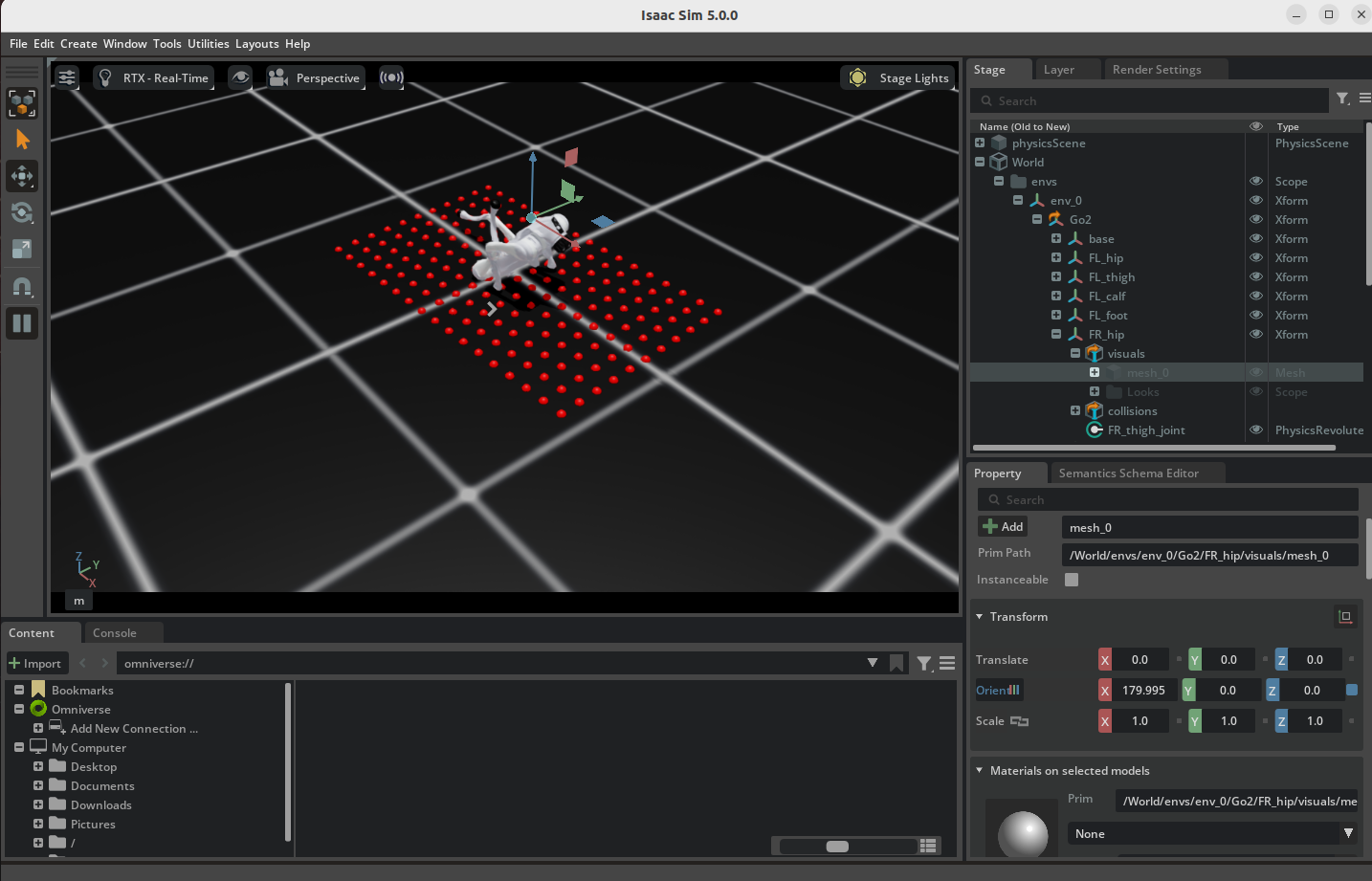
관절이 기묘하게 뒤틀린 go2..
결과적으로 random 값을 로봇의 joint에 주고 있어서 관절이 기묘하게 꺽이고 있지만 isaac sim안에서 scene은 원하는대로 구성된 모습입니다..
이 기사는 저작권자의 CC BY 4.0 라이센스를 따릅니다.